
Player controls
How the player's controls appear, what every button does, and the subtitle, audio, episode and Up Next screens.
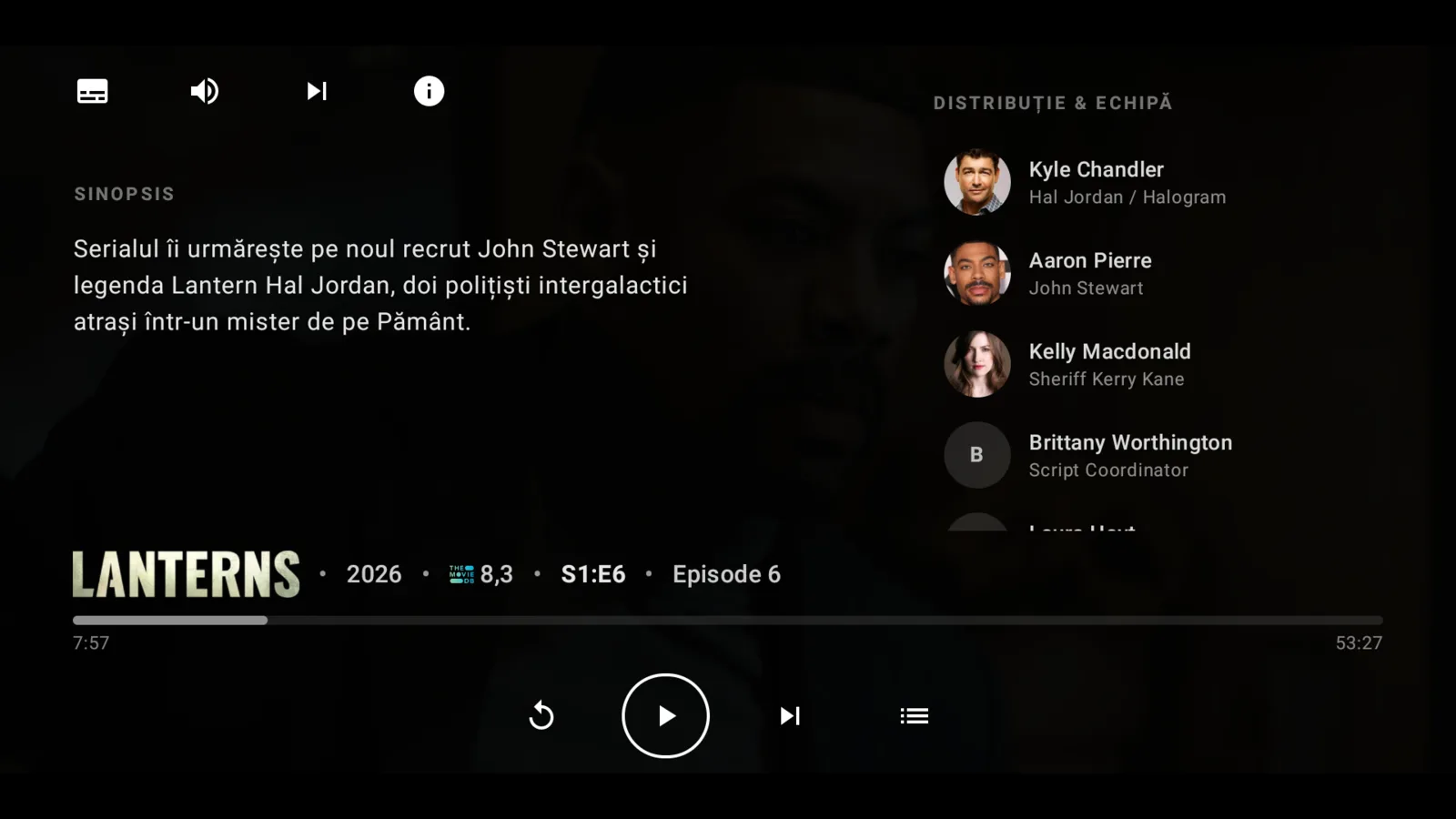
Show and hide the controls#
| You press | Controls hidden | Controls shown |
|---|---|---|
| Left / Right | Jumps 10 seconds back or forward and shows the timeline with the times | On the seek bar, jumps 10 seconds. Elsewhere, moves between buttons |
| OK | Pauses and shows all the controls | Presses the selected button |
| Up / Down | Shows all the controls | Moves between buttons |
| Back | Leaves the player | Hides the controls. A second press leaves |
If a window such as subtitles or audio is open, Back closes that window first.
The buttons#
Top row
| Button | What it does |
|---|---|
| Subtitles | Opens Subtitle settings |
| Audio | Opens Audio settings |
| Next stream | Switches to another available source |
| Info | Shows playback diagnostics, see below |
Bottom row
| Button | What it does |
|---|---|
| Restart | Goes back to the start |
| Play / Pause | Starts or stops |
| Next episode | Jumps to the next episode. Series only |
| Episode list | Opens the episodes window. Series only |
Above them, a line shows the title (or its logo), the year, the TMDB rating and, for a series, the season, the episode number and the episode name. The seek bar shows how far you are, and the times.
The pause screen#
When you pause, the player shows the Synopsis and the Cast & Crew, with photos and roles. It is a good moment to check who an actor is.
Subtitle settings#
Open Subtitles. The window is called Subtitle Settings.
| Item | What it does |
|---|---|
| Smart match | A switch. Hegemon picks the best subtitle for you |
| Use system language | A switch. Uses your TV's language |
| Preferred language | A dropdown, shown when Use system language is off. Pick the language you want |
| Sync | Opens the subtitle sync. Works only for subtitles from add-ons; for others it says Only for subtitles from addons |
| Available subtitles | Off, then every track, each marked EMBEDDED (inside the file) or ADDON (from an add-on) |
Subtitle sync#
A guided check, Subtitle Synchronization:
- It asks When do the subtitles appear? Choose Too early or Too late. Reset clears an earlier correction.
- Follow the steps: press OK when you hear a line, then again when the subtitle appears (or the other way round, as it tells you).
- It shows Calibration complete and the correction in seconds, and applies it.
If it could not catch a subtitle it says No subtitle captured and you can retry.
Audio settings#
Open Audio. The window is called Audio Settings.
| Item | What it does |
|---|---|
| Use system language | A switch. Prefers your TV's language |
| Auto-enable subtitles when audio differs | A switch. Turns subtitles on by themselves if the audio is not in your language |
| Preferred language | A dropdown for the audio language |
| Available audio tracks | Every track in the file. Default is the file's first track |
Your choices are remembered for next time.
Episodes#
For a series, Episode list opens Episodes, grouped by Season. The episode you are on is marked Current. Select another one to play it.
Up Next#
- Series: near the end, a card shows the next episode's title and Playing in N…. It starts by itself when the count ends. Select the card to play now, or the X on its left to cancel.
- Movies: near the end you see More like this, a row of similar films, and a Keep watching button that closes the screen and lets the film finish.
When it appears and how long the countdown lasts are set in Internal Player.
The Info button#
Opens a diagnostics window with:
- Video: codec, bitrate, resolution and frame rate
- Audio: format, bitrate, channels and sample rate
- HDR and colour: transfer, space, range, bit depth and, where available, MaxCLL, MaxFALL and mastering data
- Network: download speed, buffer and a quality score
- Device: memory and network tiers
It helps when you report a problem. See Community and contact.
When a stream fails#
You see Buffering… while it loads. If a stream fails, Stream Error appears and the player can switch to the next one by itself (Auto-switching in N seconds…). You can also press Next stream.